Installation
Frosting installs like any other Blender add-on. No external libraries, no compiled binaries, no internet connection required.
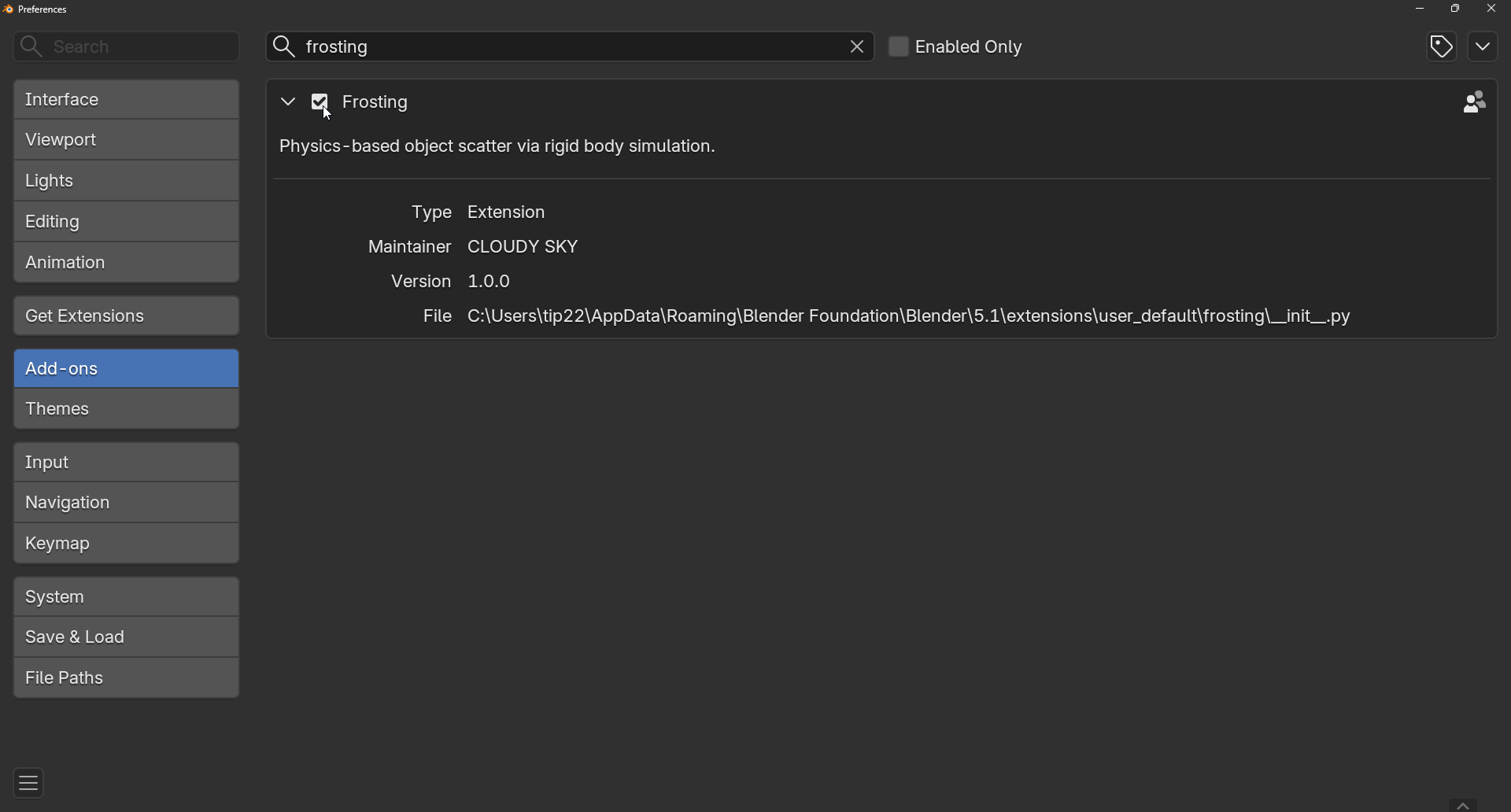
- Open Blender and go to Edit › Preferences › Add-ons.
- Click Install… (top right) and pick the
frosting.zipfile. - Enable the Frosting checkbox once it appears in the list.
- Press N in the 3D Viewport — a new Frosting tab is added to the sidebar.
Tested on: Blender 4.0 through 5.1 on Windows x64, Linux x64, macOS x64 and macOS arm64.
The manifest declares Blender 5.2 as the upper bound (exclusive).
Quick start
The shortest path from "empty scene" to "objects raining onto the floor". Six steps. Roughly a minute.
- Put the objects you want to scatter into a Collection.
- Have a Floor mesh in the scene — a plane, a terrain, a bowl, anything that catches.
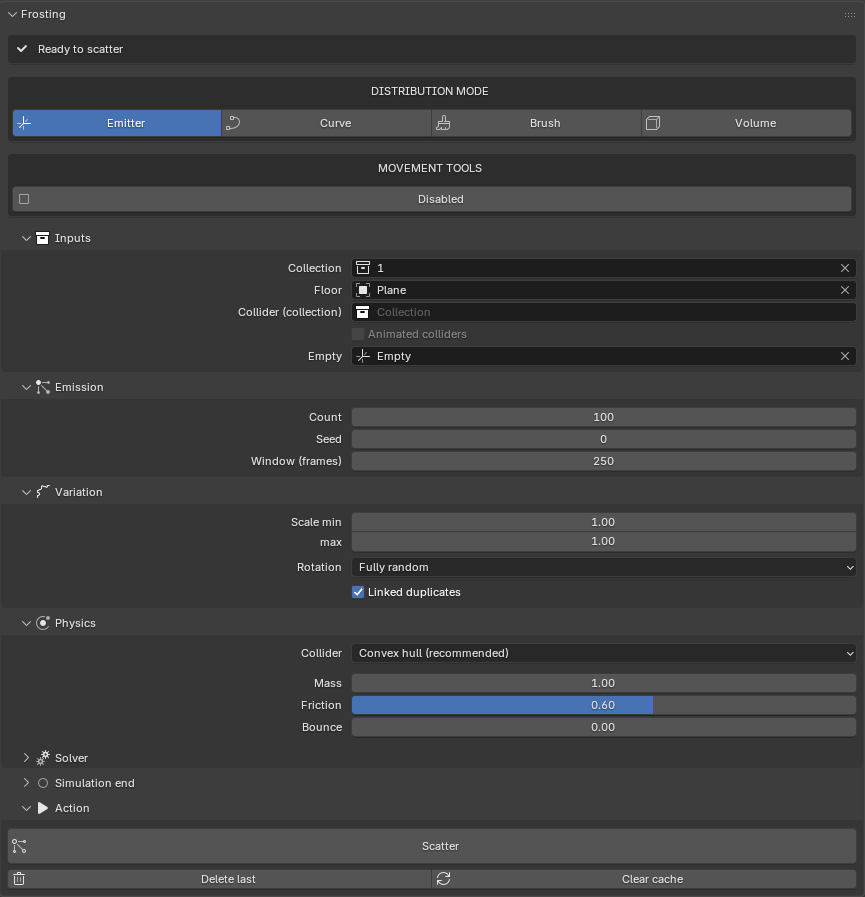
- Open the Frosting panel and assign Collection, Floor, and an Empty as the emitter.
- Set Count (try 100) and press Scatter.
- Play the timeline. Watch them fall.
- When the pile settles, press Freeze here to lock the pose, or Bake animation to keep the fall as keyframes.
Distribution modes
Frosting has four distribution modes. They share the same physics and the same source collection — only the way instances are introduced into the scene changes. Pick a mode in the DISTRIBUTION MODE row at the top of the panel.

Emitter mode
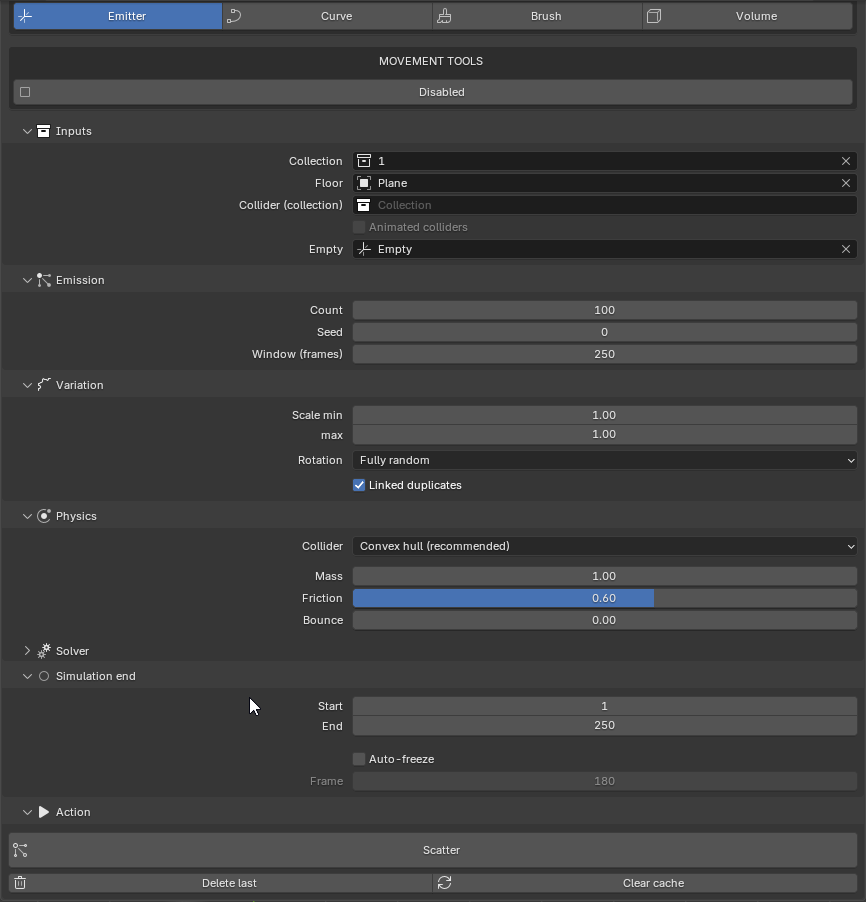
The default and most flexible mode. An Empty object defines the spawn position, and instances are released from there over one or more frames.
- Window (frames) spreads the release across N frames so instances don't all collide at frame 1.
- With Window > 1, instances exist before their spawn frame but are hidden and kinematic — they follow the Empty without falling. This is normal.
Curve mode
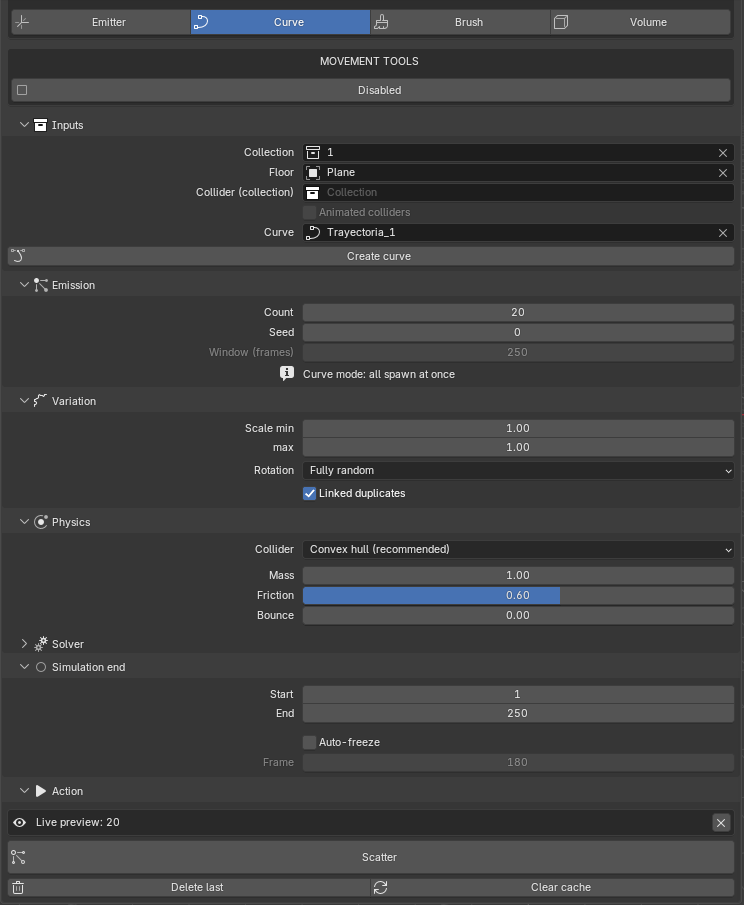
Use this when you want a precise spatial path instead of a single point source. Any open or closed Bezier or NURBS curve works. The number of spawn points equals Count, distributed evenly along the curve length.
- Click Create curve to drop a starter Bezier into the scene.
- In Curve mode all instances spawn at the same frame (the emission window is disabled).
- A Live preview button shows where the spawn points will land before you commit.
Brush mode
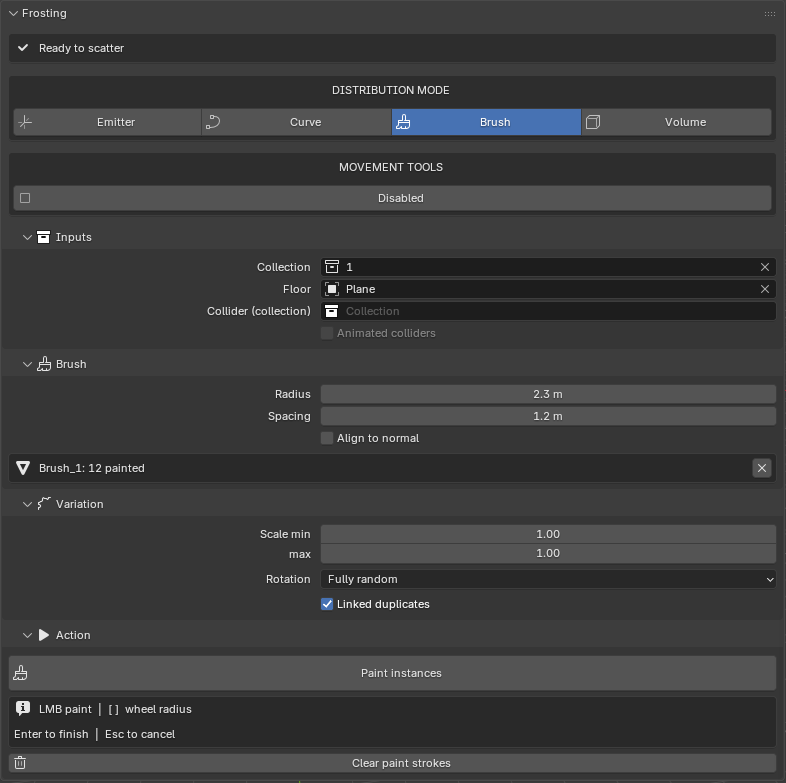
A non-simulated mode for precise placement. Press Paint instances and stamp objects onto the floor with the cursor.
| LMB drag | Paint instances along the cursor path. |
| Mouse wheel | Scroll to shrink or grow the brush radius. |
| Shift + Mouse wheel | Adjust the spacing between painted instances — how close together they sit. |
| Middle click | Erase — deletes instances the brush passes over. The brush ring turns red while held. |
| Enter | Finish the stroke and commit the painted objects. |
Volume mode
For dense, structured stacks: bricks in a pallet, rocks in a crate, ice cubes in a glass. Defines a 3D box on the floor and fills it with a regular grid of instances that then collapse under gravity.
- Drag on the Floor to set the XY base of the cube.
- Release and move the mouse up to set the Z height.
- Click to confirm. The cube fills with a grid of instances.
- Press Start simulation to make the stack collapse.
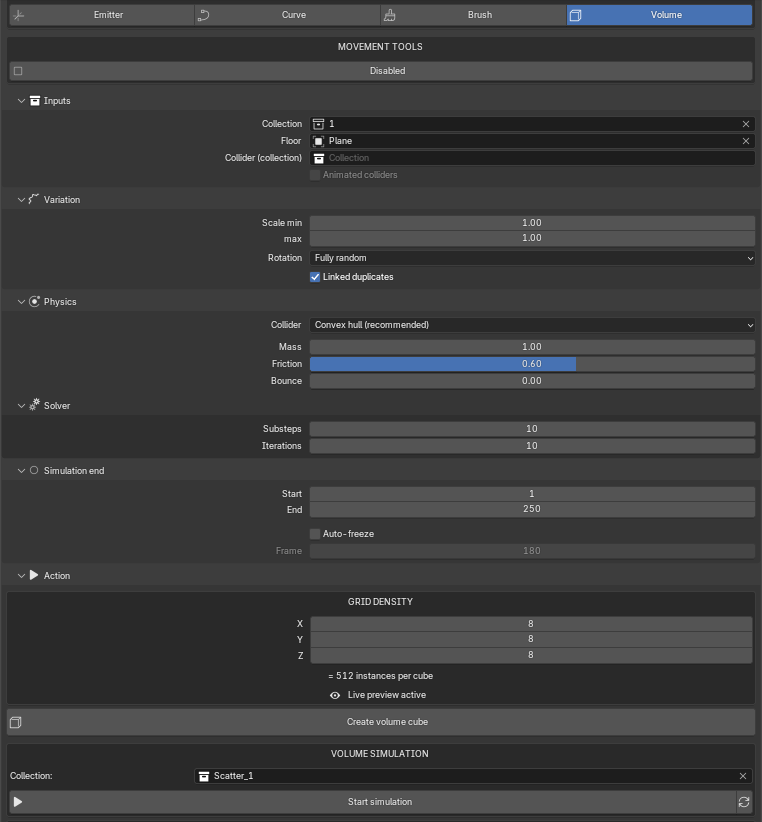

The same volume-cube placement is also exposed as a workspace tool — the Volume Grid tool — so you can keep dropping stacks without leaving the mode.
Panel reference
Field-by-field description of every control in the Frosting sidebar. Some sub-panels appear or disappear depending on the active distribution mode.
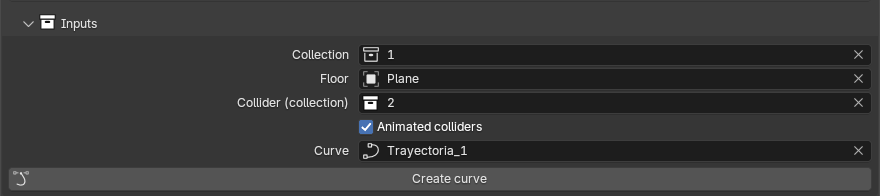
| Collection | Source collection — the objects to distribute. |
| Floor | Mesh that catches the instances. Auto-converted to a passive rigid body. |
| Collider (collection) | Optional. Extra colliders (walls, props, characters) that also block the falling objects. |
| Animated colliders | Tick if any collider has keyframes or constraints, so Bullet re-bakes them every frame. |
| Empty / Curve | The emission source. Hidden in Brush and Volume modes. |
| Create curve | (Curve mode only) Drops a starter Bezier into the scene and assigns it. |
| Count | Number of instances to spawn. |
| Seed | Randomisation seed. Same seed + same scene = same result. |
| Window (frames) | How many frames the emission is spread over. Emitter only — Curve always releases at once. |

| Radius | Brush circle radius in world units. |
| Spacing | Minimum distance between two painted instances. Smaller = denser paint. |
| Align to normal | Tilt each instance to follow the floor's surface normal. |

| Scale min / max | Each instance gets a uniform random scale in this range. |
| Rotation | How the spawn rotation is computed. Three modes:
Random — fully random Euler. Align to normal — face the local surface normal. Upright — keep Z up, randomise Z rotation. |
| Linked duplicates | Re-use source mesh data. Saves a lot of memory at high counts; trades off the ability to edit instances independently. |

| Collider | Collision shape used by Bullet:
Convex hull — recommended. Fast and stable. Exact mesh — precise but slow, can be unstable. Box — bounding box. Sphere — bounding sphere. |
| Mass | Per-instance mass. |
| Friction | 0 = ice, 1 = sandpaper. |
| Bounciness | 0 = clay, 1 = rubber ball. |

Solver (nested)
| Substeps | More substeps = more stable, slower simulation. |
| Iterations | Solver iterations per substep. |

| Start / End | Simulation range. Stays in sync with the scene timeline while no session is running. |
| Auto-freeze | When the timeline reaches Frame, freeze the session automatically. Handy for batch / overnight bakes. |
| Frame | The frame at which Auto-freeze fires. |

The Action sub-panel changes depending on whether a session is running.
When idle (no session)
| Scatter | Run the scatter for the current mode. |
| Delete last | Remove the collection produced by the most recent Scatter. Sources are not touched. |
| Clear cache | Free the Bullet point cache. Use this if the simulation behaves oddly after editing settings. |

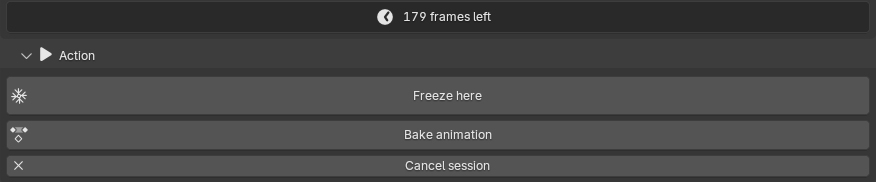
During a live session
| Freeze here | Stop the simulation and snapshot the current pose. Instances become regular keyframe-free objects. |
| Bake animation | Convert the running simulation into keyframes on every instance, then end the session. Plays without the rigid body world. |
| Cancel session | Throw away the scatter and restore the scene. |
Movement tools
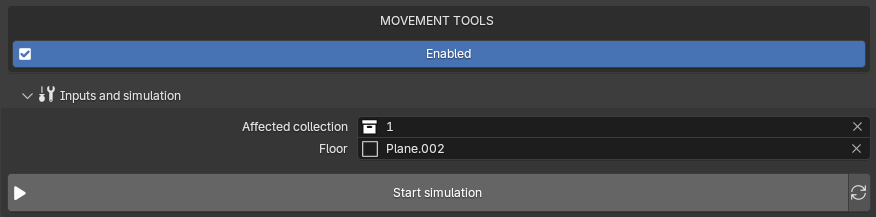
Toggle MOVEMENT TOOLS at the top of the Frosting panel to enter a post-production mode. The distribution panels disappear and three workspace tools are added to the 3D Viewport toolbar (left edge, T).
Experimental — in development. This section is still being refined. Expect rough edges and possible changes in upcoming releases.


Inputs and simulation
Visible only when Movement Tools is enabled.
| Affected collection | Which collection the workspace tools push around. |
| Floor | The floor mesh used by the tools. |
| Start simulation | Re-enable Bullet on the affected collection so the Plough tool actually moves things. |
| Stop simulation | Pause Bullet and lock the pose. |
Tips & gotchas
Small facts that save big headaches. None of these are bugs; they are consequences of how Bullet and the Blender dependency graph interact.
Ghost instances on the Empty. In Emitter mode with a Window > 1, you may notice kinematic "ghost" instances stuck to the Empty before their spawn frame arrives. This is normal — not a bug. They reveal themselves and start falling on their assigned frame.
Rendered viewport + big counts can crash Blender.
Avoid running a scatter session in Rendered shading for very large counts (1000+). Bullet re-evaluates the world many times per frame at that shading level, and frequent rigid-body changes during evaluation can crash Blender. Material Preview is safe.
Frame range while a session is live. Changing the timeline Start/End does not update the rigid body cache during a session. End the session first.
Don't put source objects in the Floor or Collider collection. If you do, the scatter will try to drop instances onto themselves.
Clear cache. If the simulation behaves oddly after multiple runs, this clears the Bullet point cache and gives you a clean slate.
Curve mode. Any closed or open Bezier or NURBS curve works. The number of spawn points = Count, distributed evenly along the curve length.
Support
Frosting is published under the GNU GPL v2 (or later). The full license
text ships with the addon in license.txt.
| Maintainer | CLOUDY SKY |
| Version | 1.0.0 |
| Blender | 4.0.0 to 5.1.x (declared up to 5.2.0, exclusive) |
| License | GNU GPL-2.0-or-later |
| Product page | gokusayayin641-ai.github.io/frosting-page |
| Superhive | superhivemarket.com/products/frosting |
| Creator | gokusayayin641-ai.github.io |
Thank you for using Frosting. Happy scattering.